How to register Wave Zay Sine App

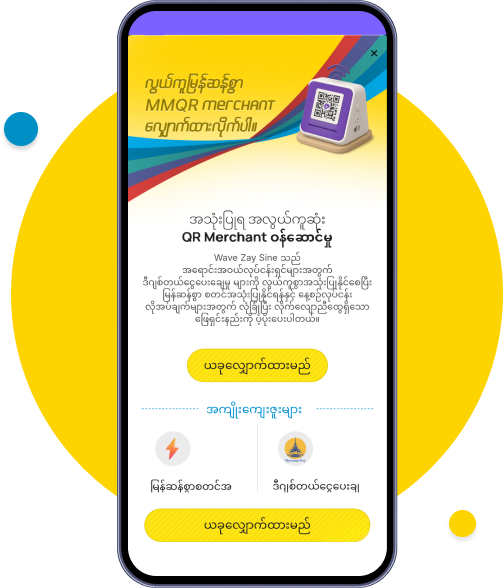
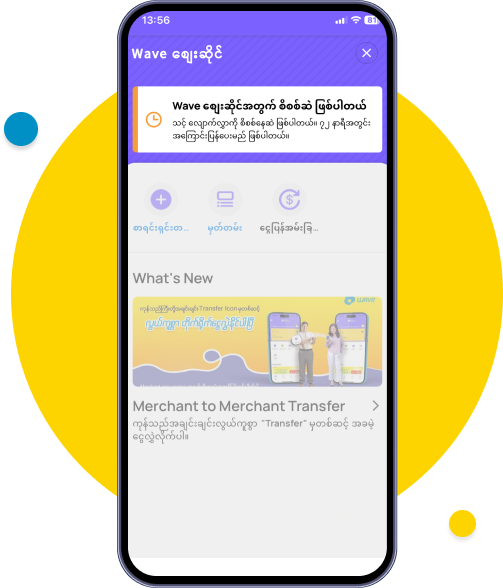
To register, click on the Wave Zay Sine Banner or the Wave Zay Sin Mini App on the Home/Profile screen.
After reading the benefits, click on 'Apply Now'.
Please turn on your GPS to ensure the shop location is accurate.
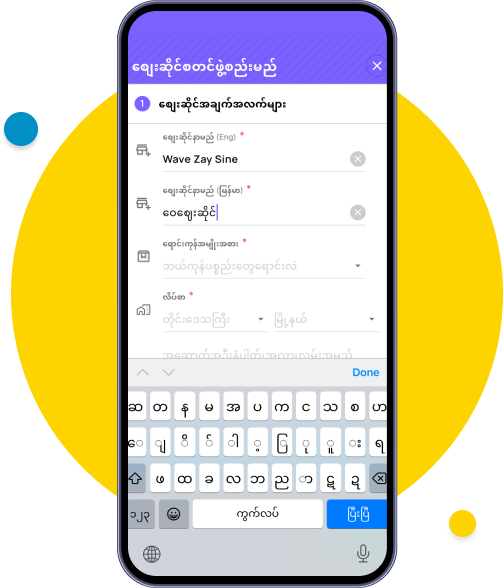
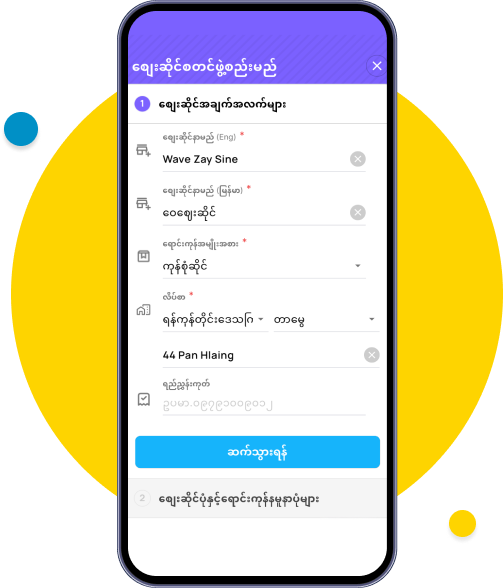
Enter the shop name in both Myanmar (Burmese) and English.
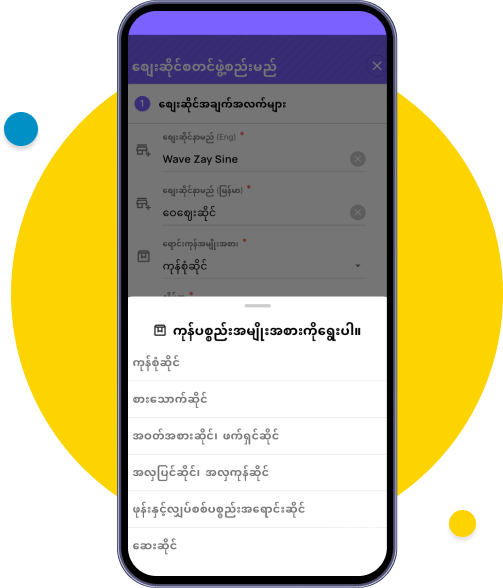
Select the type of products to be sold.
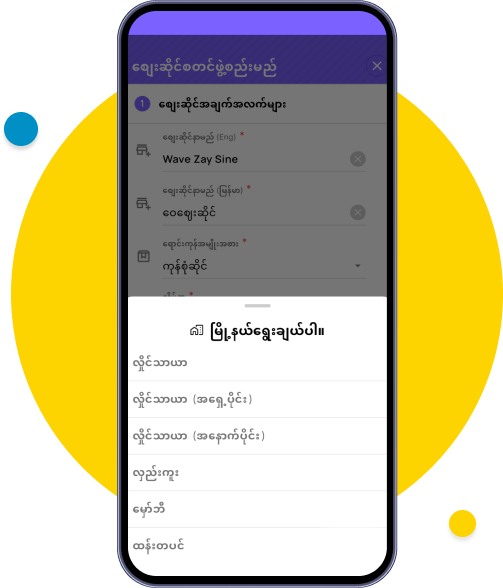
Select the shop's location region.
Select the shop's location township.
Enter the street name in English.
Review the entered information and click 'Continue'.
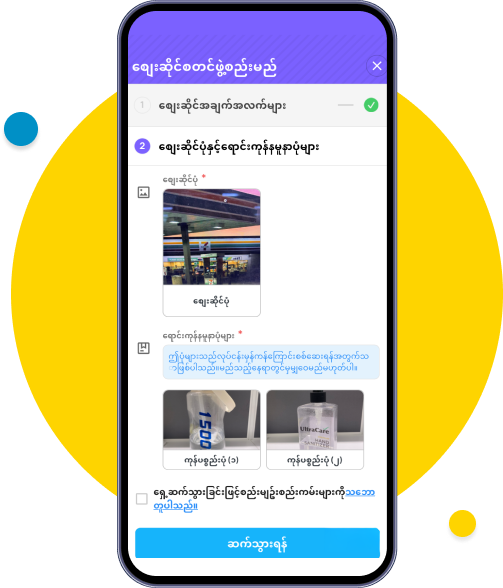
Take/Upload photos of the shop front and sample photos of the products being sold.
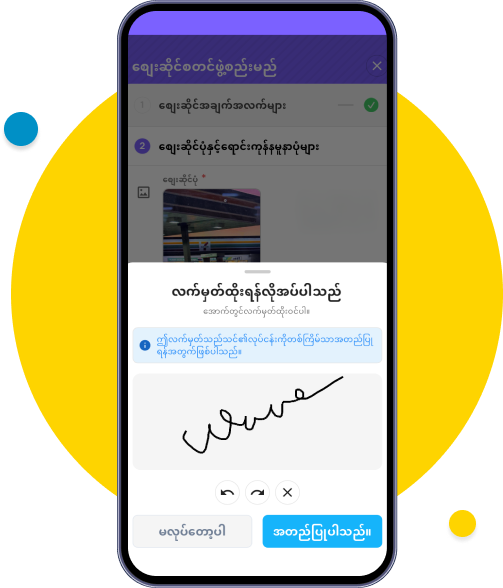
Draw your usual signature and click 'Verify’.
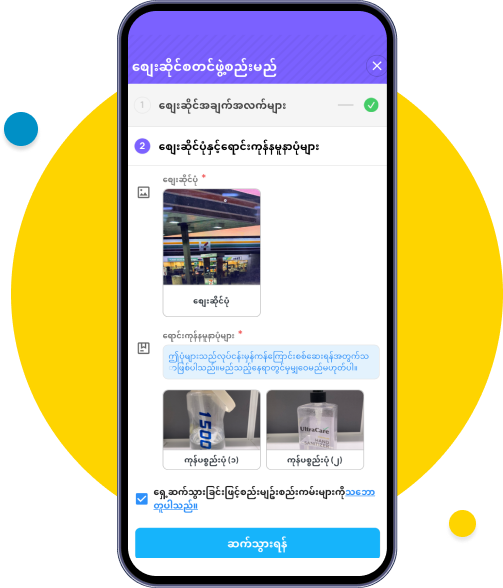
Tick the terms and conditions and click 'Continue' .
You will have to wait for the specified verification/review period.
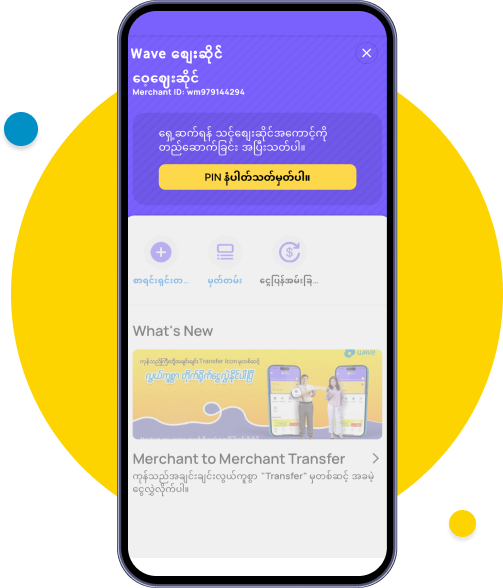
Once the review/verification is successful, click on 'Set PIN Number to create your account'.
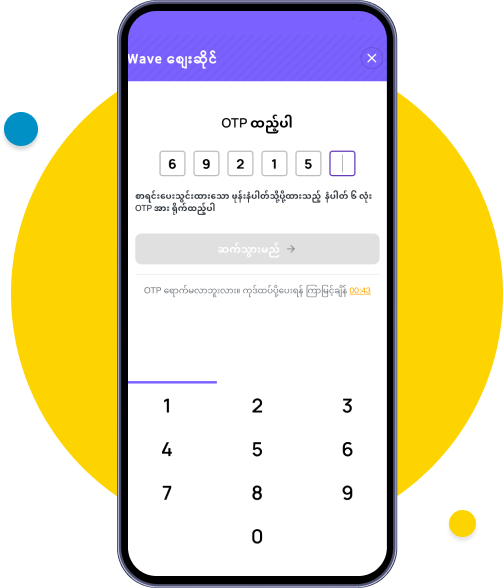
Enter the 6-digit OTP from the SMS.
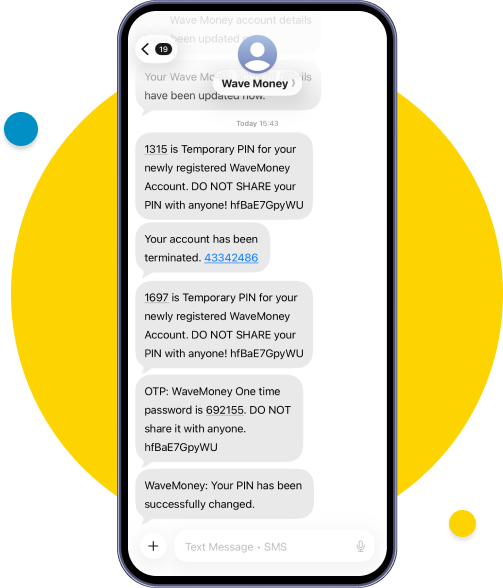
A Temporary PIN will be sent via SMS for the shop that has successfully passed the review.
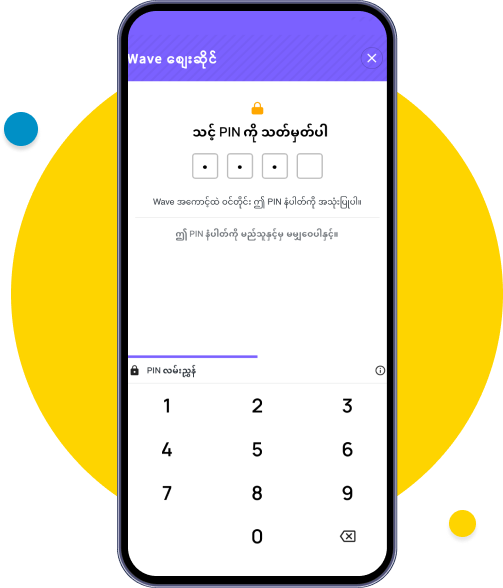
Enter the 4-digit Temporary PIN from the SMS.
Enter the new PIN.
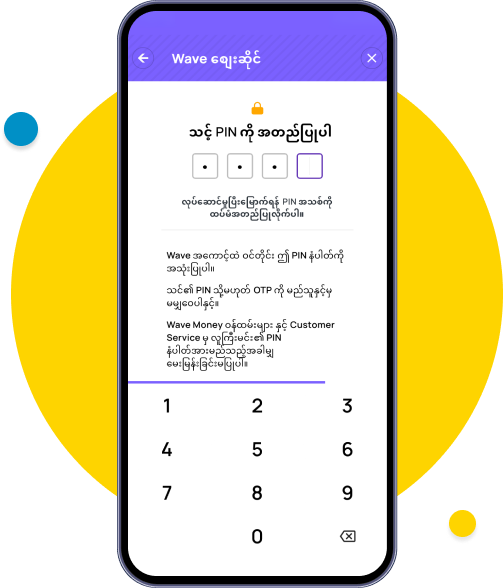
Re-enter the new PIN.
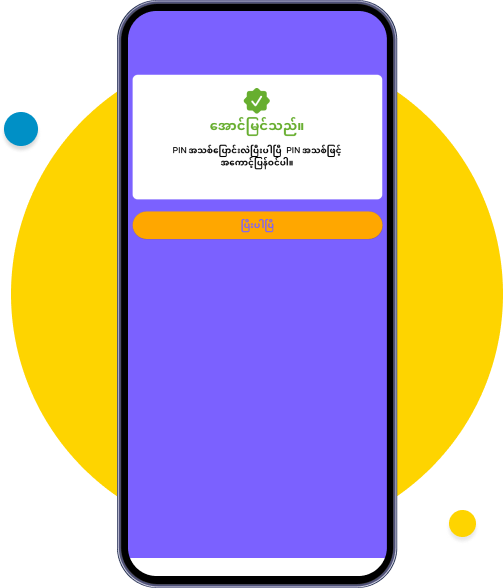
Wave Zay Sine has been successfully set up. Please click ‘Done’ to log in with your new PIN.
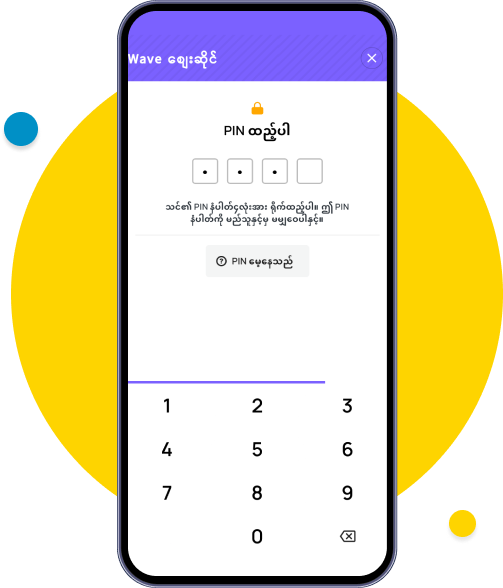
Log in with the new PIN.
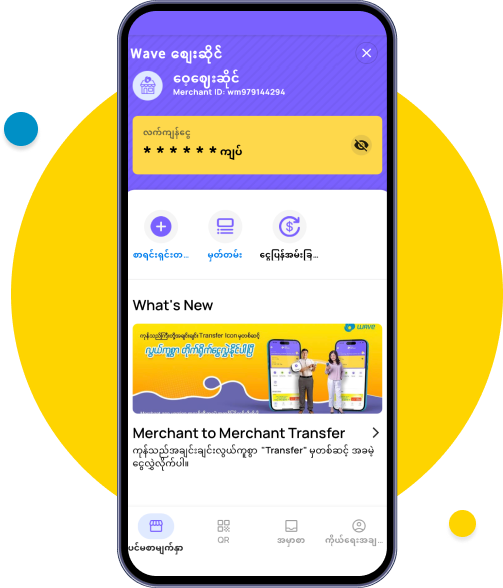
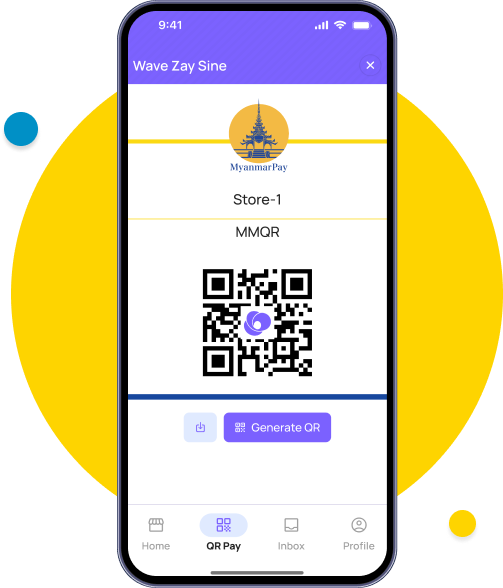
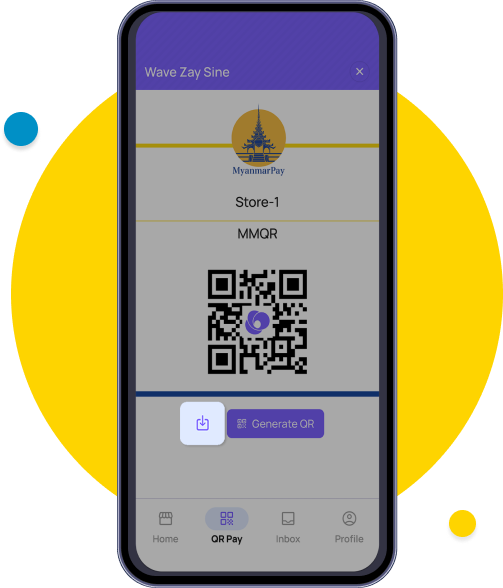
You can now perform payments receive and money transfers for your business via Wave Zay Sine using MMQR.
To register, click on the Wave Zay Sine Banner or the Wave Zay Sin Mini App on the Home/Profile screen.
After reading the benefits, click on 'Apply Now'.
Please turn on your GPS to ensure the shop location is accurate.
Enter the shop name in both Myanmar (Burmese) and English.
Select the type of products to be sold.
Select the shop's location region.
Select the shop's location township.
Enter the street name in English.
Review the entered information and click 'Continue'.
Take/Upload photos of the shop front and sample photos of the products being sold.
Draw your usual signature and click 'Verify’.
Tick the terms and conditions and click 'Continue' .
You will have to wait for the specified verification/review period.
Once the review/verification is successful, click on 'Set PIN Number to create your account'.
Enter the 6-digit OTP  from the SMS.
Enter the 6-digit OTP from the SMS.
A Temporary PIN will be sent via SMS for the shop that has successfully passed the review.
Enter the 4-digit Temporary PIN from the SMS.
Enter the new PIN.
Enter the new PIN.
Re-enter the new PIN.
Wave Zay Sine has been successfully set up. Please click ‘Done’ to log in with your new PIN.
Log in with the new PIN.
You can now perform payments receive and money transfers for your business via Wave Zay Sine using MMQR.

Wavemoney © 2025. All rights reserved.Developed by B360

chat icon